Browse and Compare Git Revisions Without Checking Out
Sometimes a diff is only the starting point. You need to read the repository as it existed at a particular commit, check a file against an earlier revision, or review all changes inside one folder.
CommitPlus now brings those tasks into a visual workflow with Show Repository at Revision, Compare with Revision, and Compare Parent Folder with Revision. These views are read-only: you can explore past code while keeping your current branch, staged changes, and local edits in place.
1. Browse the repository at a commit
Show Repository at Revision opens the complete repository snapshot recorded in a commit. Use it when you need the surrounding code as well as the files that changed—for example, to understand how a module was organized before a refactor.
Start from History
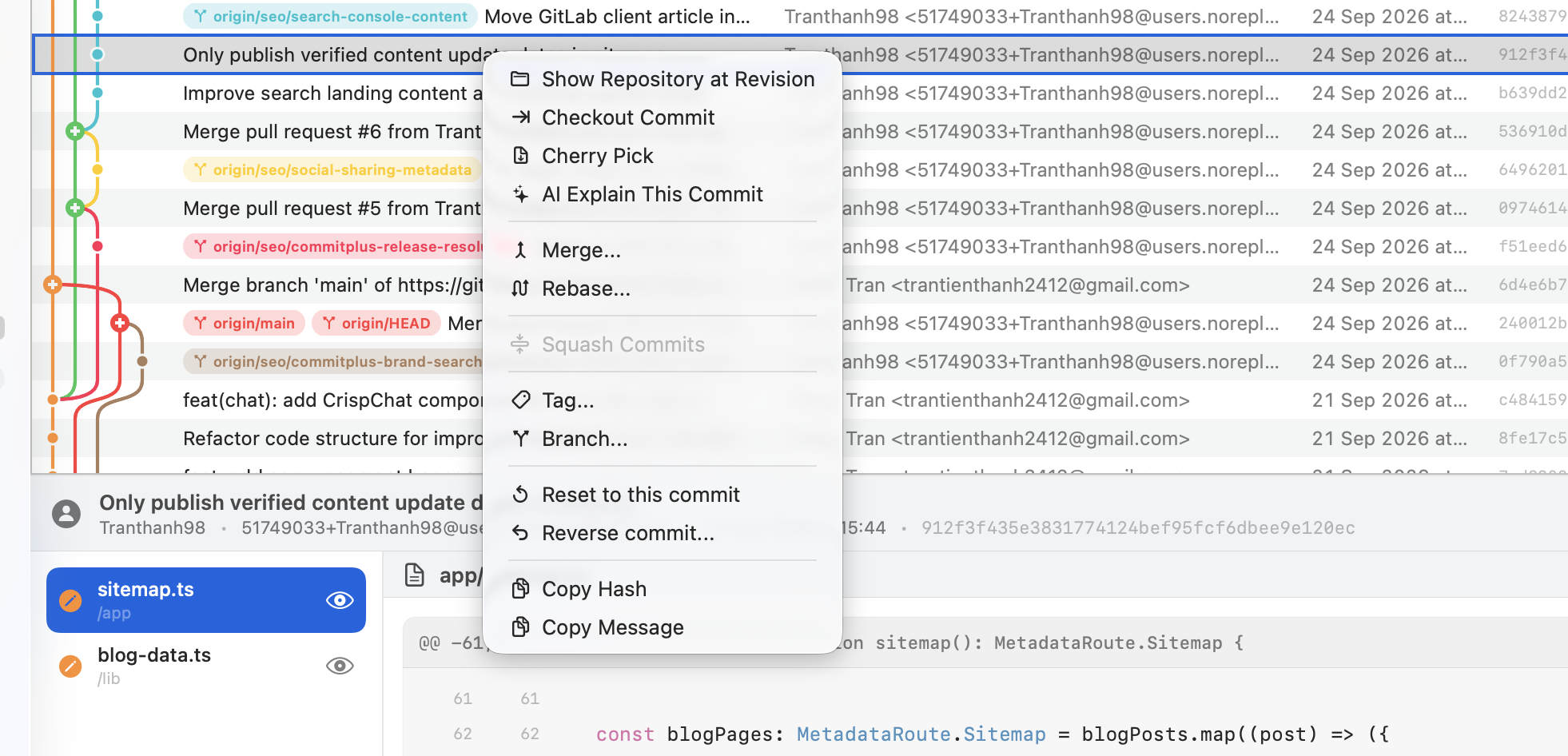
Open History, select a single commit, and right-click its row. Choose Show Repository at Revision at the top of the context menu.
Explore the tree and preview files
A separate window shows the repository tree on the left and a file preview on the right. Expand a folder and select a file to read its contents at that commit. The header includes the commit subject, short SHA, and a Read-only label.
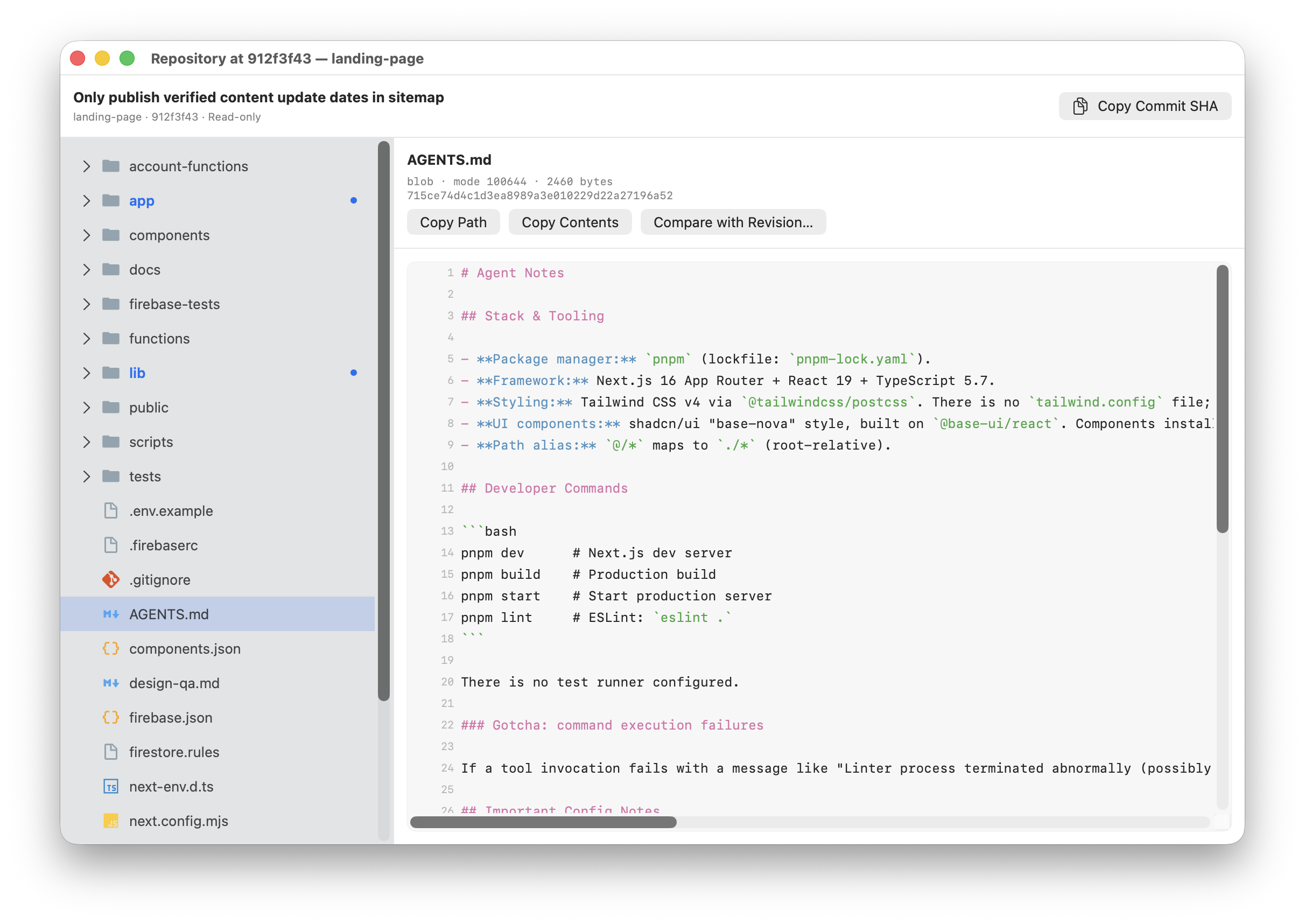
In this example, AGENTS.md is open for context, while blue indicators mark the app and lib folders as containing changes in the selected commit. You can use Copy Path, Copy Contents, or Copy Commit SHA to bring the relevant details into a review or discussion.
Text files have a content preview. Binary files, submodules, symbolic links, Git LFS pointers, and oversized content have dedicated information or preview-limit messages.
2. Compare a file with a revision
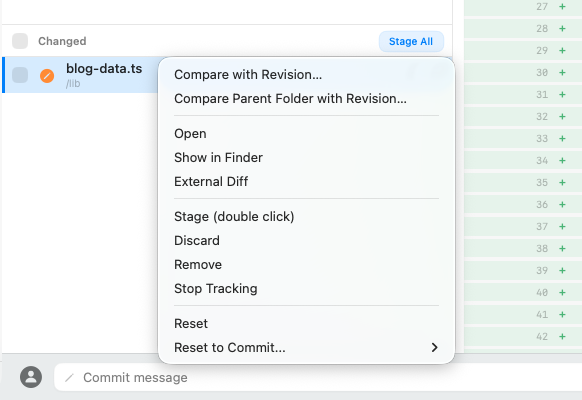
To focus on one file, start in File Status. Right-click a tracked file and choose Compare with Revision…. The same menu also provides the folder comparison covered below.
The comparison opens in a separate, resizable window with the selected file's diff. Enter a commit, branch, or tag in the revision field and click Compare, or pick a reference from Choose Revision.
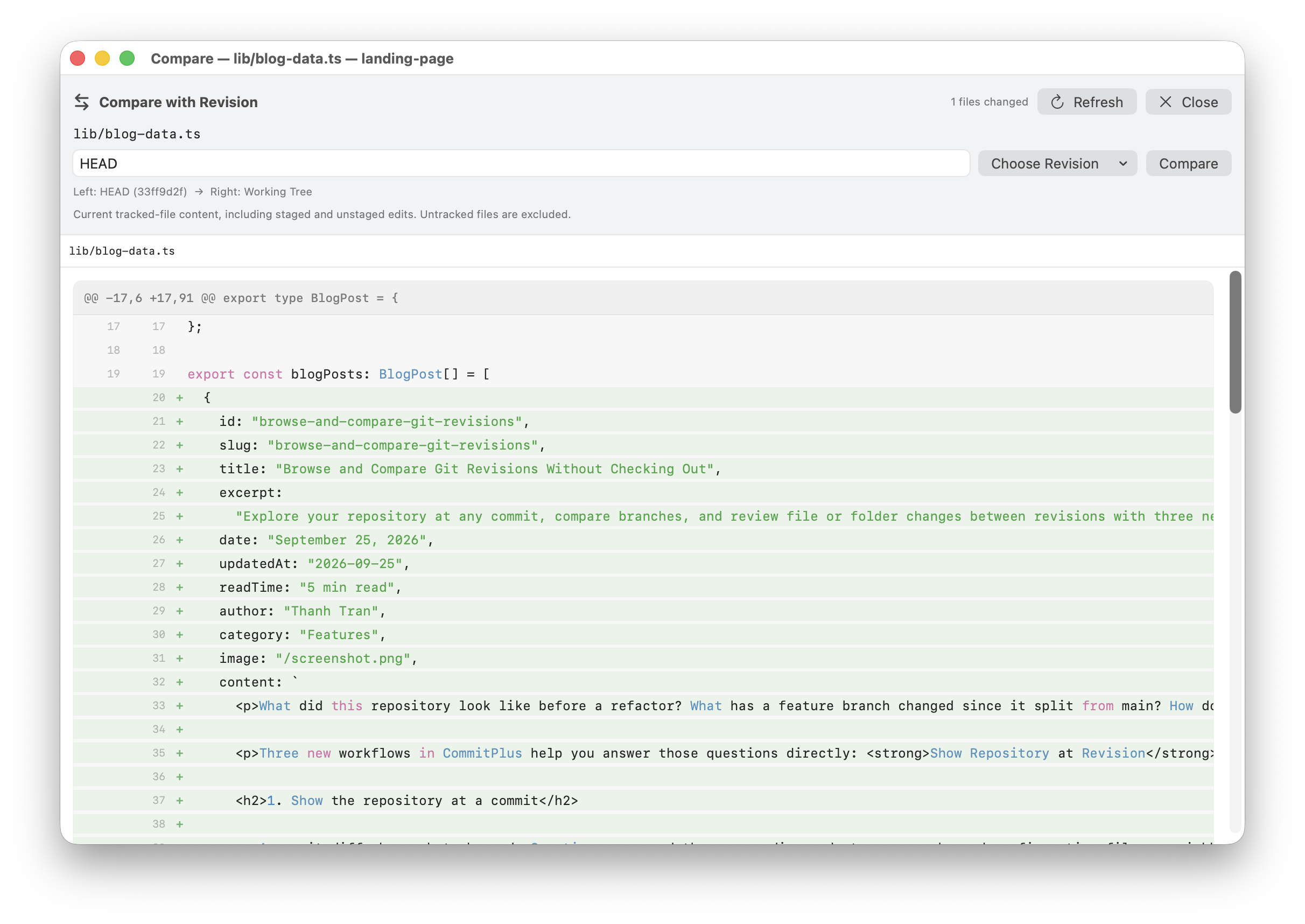
Here, lib/blog-data.ts is compared against HEAD. The header reads Left: HEAD → Right: Working Tree, and the green lines show additions to the file. This is useful for reviewing current work against the latest commit, an older commit, or a release tag.
When opened from File Status, the comparison uses current tracked-file content, including staged and unstaged edits. Purely untracked files are excluded. Check the left and right labels whenever you change the reference so you know exactly which versions you are reviewing.
3. Compare a folder with a revision
A change often spans several files in the same part of a project. From a file's context menu in File Status, choose Compare Parent Folder with Revision… to review its containing folder together.
- Right-click a file inside the folder you want to inspect.
- Choose Compare Parent Folder with Revision….
- Enter or select the commit, branch, or tag to compare against.
- Select a changed file from the list to inspect its diff.
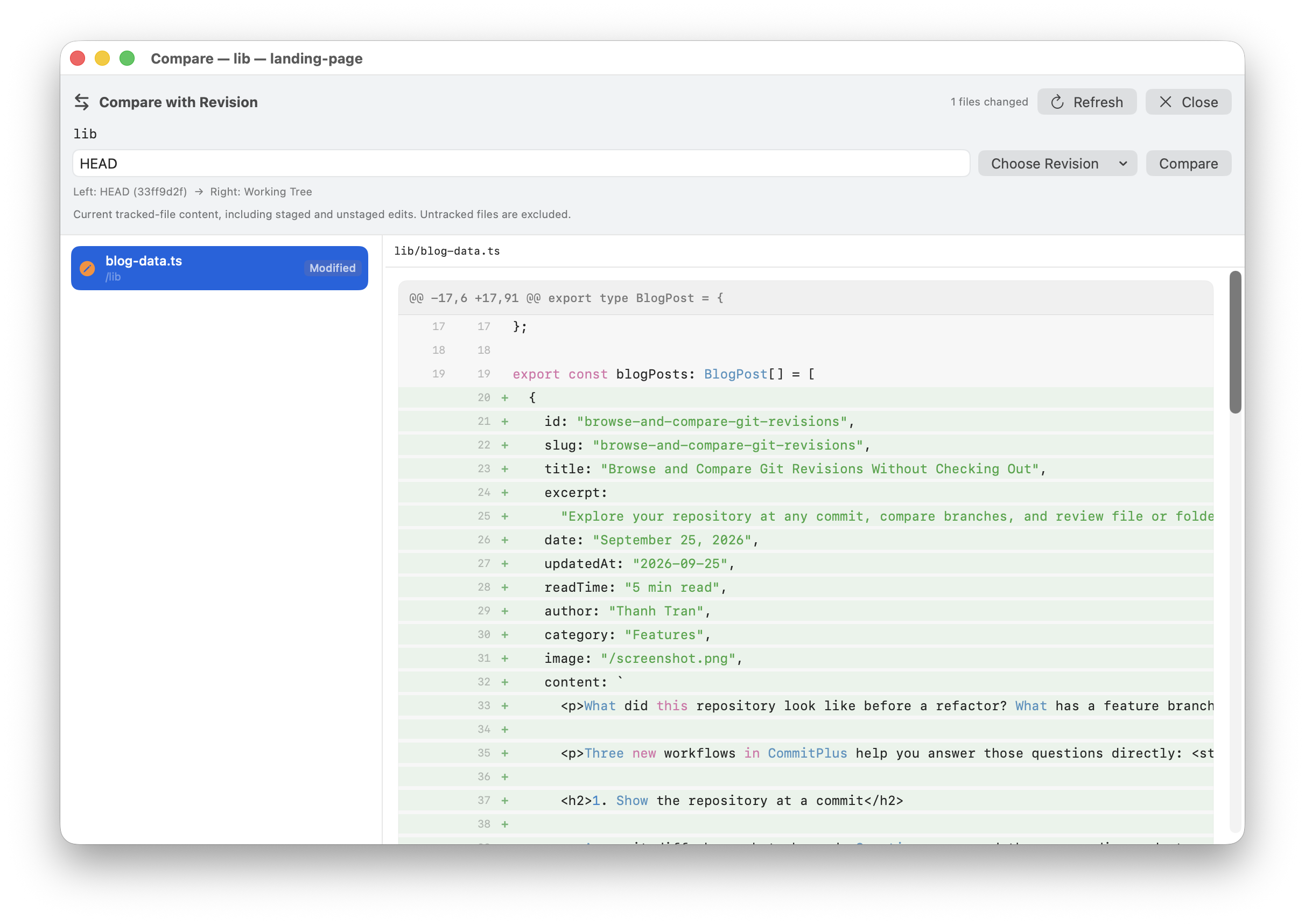
The example above is scoped to lib. Only blog-data.ts differs here, so the list contains one modified file. When more files differ, you can move through them without including unrelated changes elsewhere in the repository.
Compare historical files and folders too
You can also start from the repository browser introduced above. Right-click a file or directory and choose Compare with Revision…, or use the comparison button in the preview pane. The target is then the commit you were browsing, rather than your working tree.
For example, open a commit after a refactor, select the affected folder, and compare it with an earlier release tag. This lets you review two committed versions of that folder while your local edits stay separate.
Need a broader view? Compare branches
For a repository-wide review, right-click a local or remote-tracking branch in the sidebar and choose Compare with.... Set the Base and Target, then use Files to inspect diffs or Commits to see commits unique to each side. The header shows the merge base and the target's ahead/behind counts, and Swap reverses the comparison.
- Merge-base mode, the default, shows the target's changes since the branches' common ancestor. Use it to review a feature branch's work.
- Tip-to-tip mode compares the current committed trees of the base and target. Use it to see how the two branch snapshots differ now.
Comparisons use references available in your local repository. Refresh reloads the comparison without fetching; fetch first if you need newer remote commits.
Explore history without interrupting your work
Open a commit to understand the repository at that point in time, compare one file to examine a specific edit, or compare a folder to review a larger change. Each view gives you a different level of detail without requiring a checkout.
For implementation details, see the pull requests for branch comparison, file and folder comparison, and the repository revision browser.
Download CommitPlus and try these workflows with your own repository.
Thanh Tran
Passionate developer and creator of CommitPlus. Focused on building beautiful and performant macOS applications.